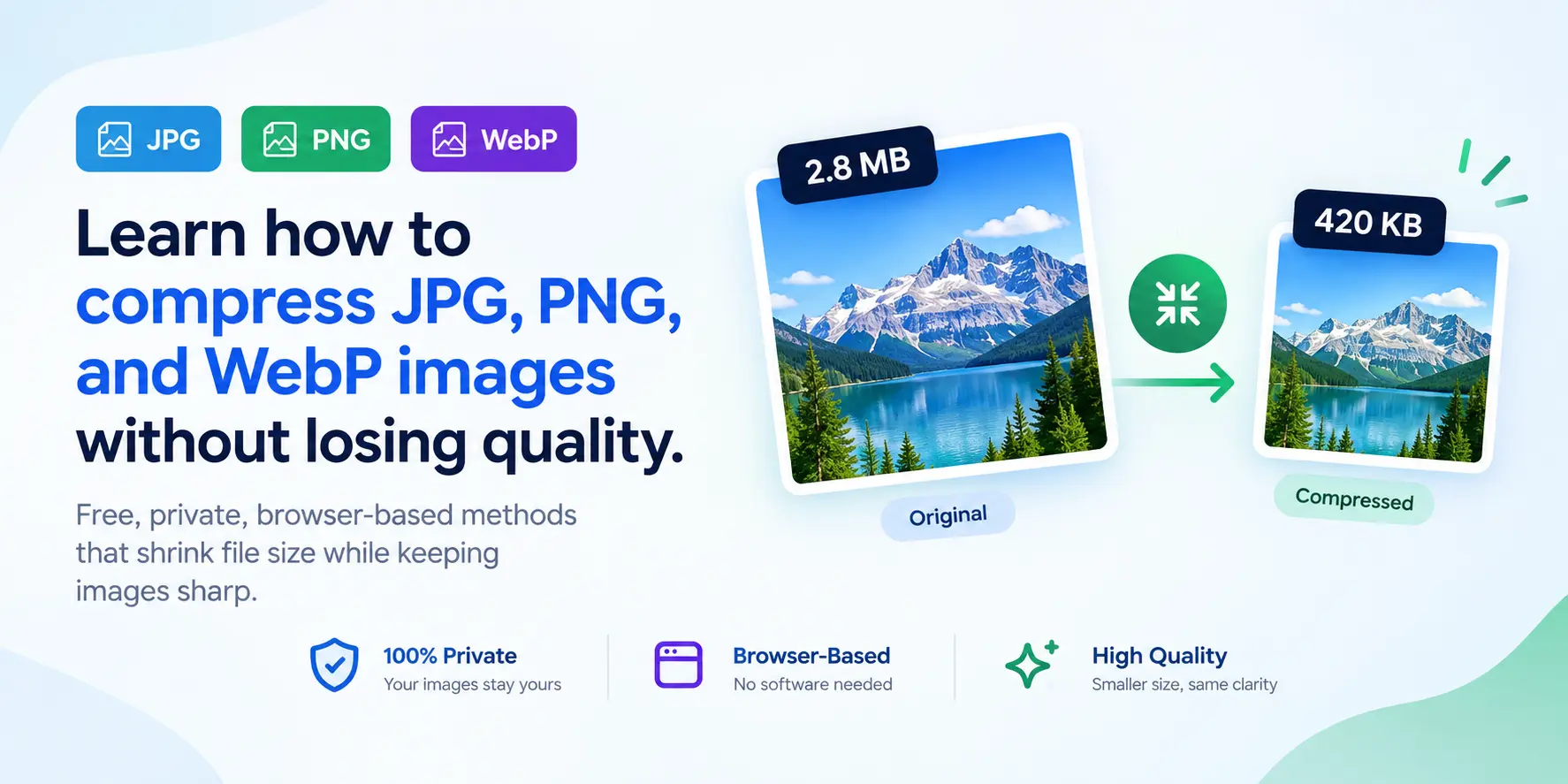
Large image files slow down your website, eat up storage, and make pages painful to load on mobile. The good news: you can compress an image without losing quality that anyone would notice. This guide shows you how image compression actually works, when to use each format, and how to shrink your files for free, right in your browser, without uploading a single photo to a server.
What does it mean to compress an image?
Compressing an image means reducing its file size by removing data the human eye barely registers. There are two types. Lossless compression keeps every pixel intact and shrinks the file modestly. Lossy compression throws away some data to make the file much smaller, and when done well, the result looks identical to the original at normal viewing sizes. The trick to compressing without visible quality loss is choosing the right amount of lossy compression for your image.
Why smaller images matter for SEO and speed
Page speed is a ranking factor. Google favors pages that load fast, and images are usually the heaviest thing on a page. A single uncompressed photo can be several megabytes, while a well-compressed version of the same image can be a fraction of that with no visible difference. Faster pages mean better rankings, lower bounce rates, and a smoother experience for mobile visitors on slow connections.
How to compress an image without losing quality
- Start with the right format: use JPG for photos, PNG for graphics with transparency, and WebP for the best balance of quality and size.
- Aim for a quality setting around 75 to 85 percent, which removes weight while keeping detail.
- Resize before you compress: if an image is wider than it needs to be, shrinking its dimensions cuts file size dramatically.
- Convert to WebP when you can, since it is often 25 to 35 percent smaller than JPG at the same quality.
- Always keep an original copy, so you can recompress from the source if you need a different size later.
Compress images free with Craftora
Craftora gives you everything you need to compress images without losing quality, and every tool runs entirely in your browser, so your photos are never uploaded to a server. Use the Compress Image tool to shrink JPG, PNG, and WebP files with a quality slider. Need to change dimensions first? The Resize Image tool lets you set an exact width and height. To switch formats, the Convert Image tool moves between JPG, PNG, and WebP in one click. And if you want to crop out unnecessary areas before compressing, the Crop Image tool makes it quick.
Frequently asked questions
Does compressing an image always reduce quality? Not noticeably. Lossless compression keeps quality identical, and well-tuned lossy compression removes only data your eye cannot detect.
Which format is best for small file size? WebP usually wins, offering smaller files than JPG or PNG at the same quality.
Is it safe to compress images online? With Craftora, yes, because compression happens in your browser and your images are never uploaded anywhere.